
Confirm your export destination is supported: https://support.snapstream.com/support/solutions/articles/154000148492-what-are-the-different-ways-to-export-tv-content-out-of-snapstream-
Configuring these export destinations can involve two different sections of the SnapStream WebUI:
- Admin > External Accounts
- Admin > Folders (in the Export Destinations section)
For some types of web-driven storage solutions, it may be necessary to set up the External Account first before you can set up the export folder in Admin > Folders (Export Destinations).
To configure a new Export Folder, enter the desired location of the folder, path and the name of the machine on which the path appears.
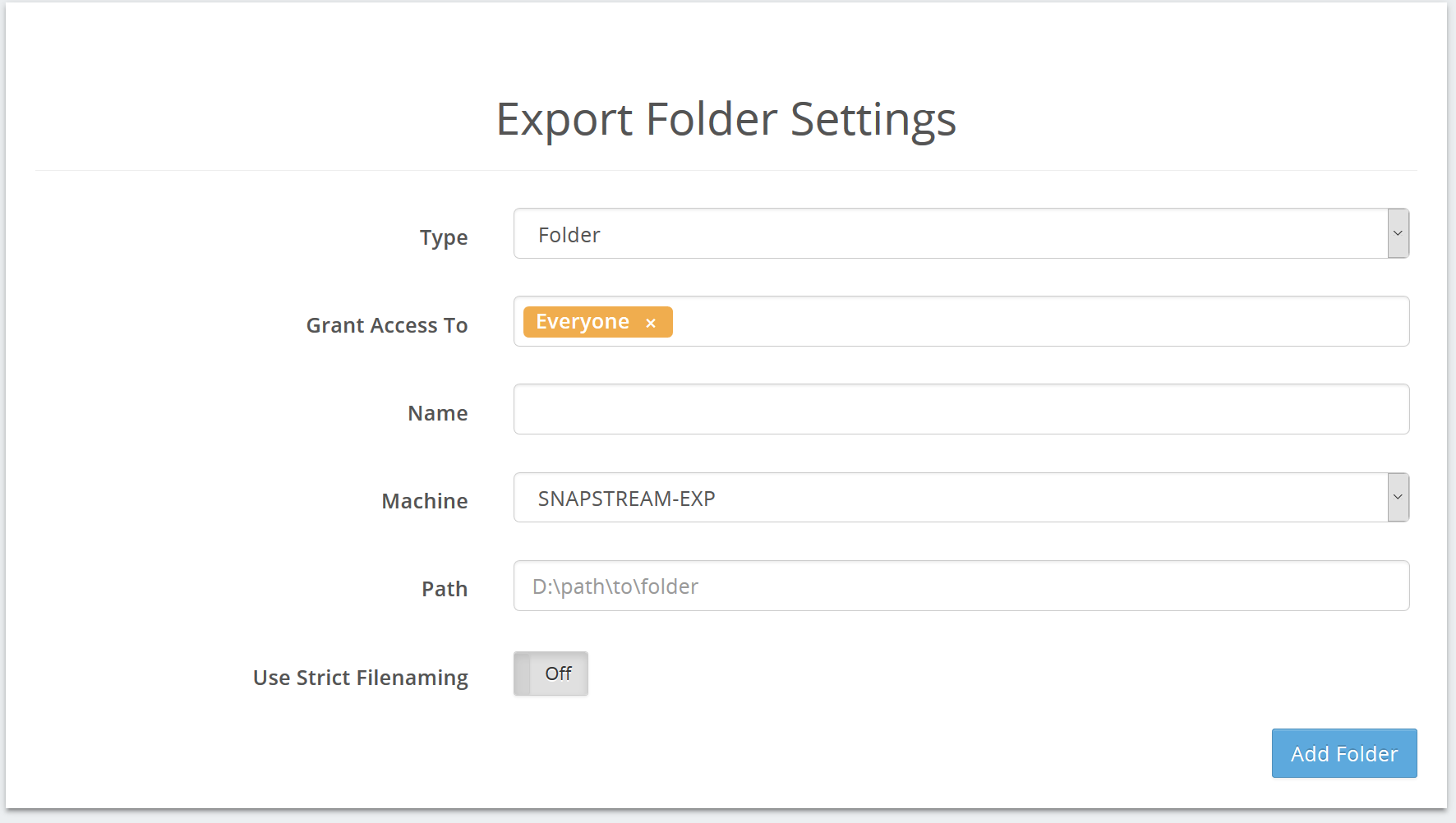
To begin setting up an Export Location, first select a Type.
All export location types allow you to restrict access to specific users or groups.
Amazon S3
Export to an Amazon S3 cloud location.
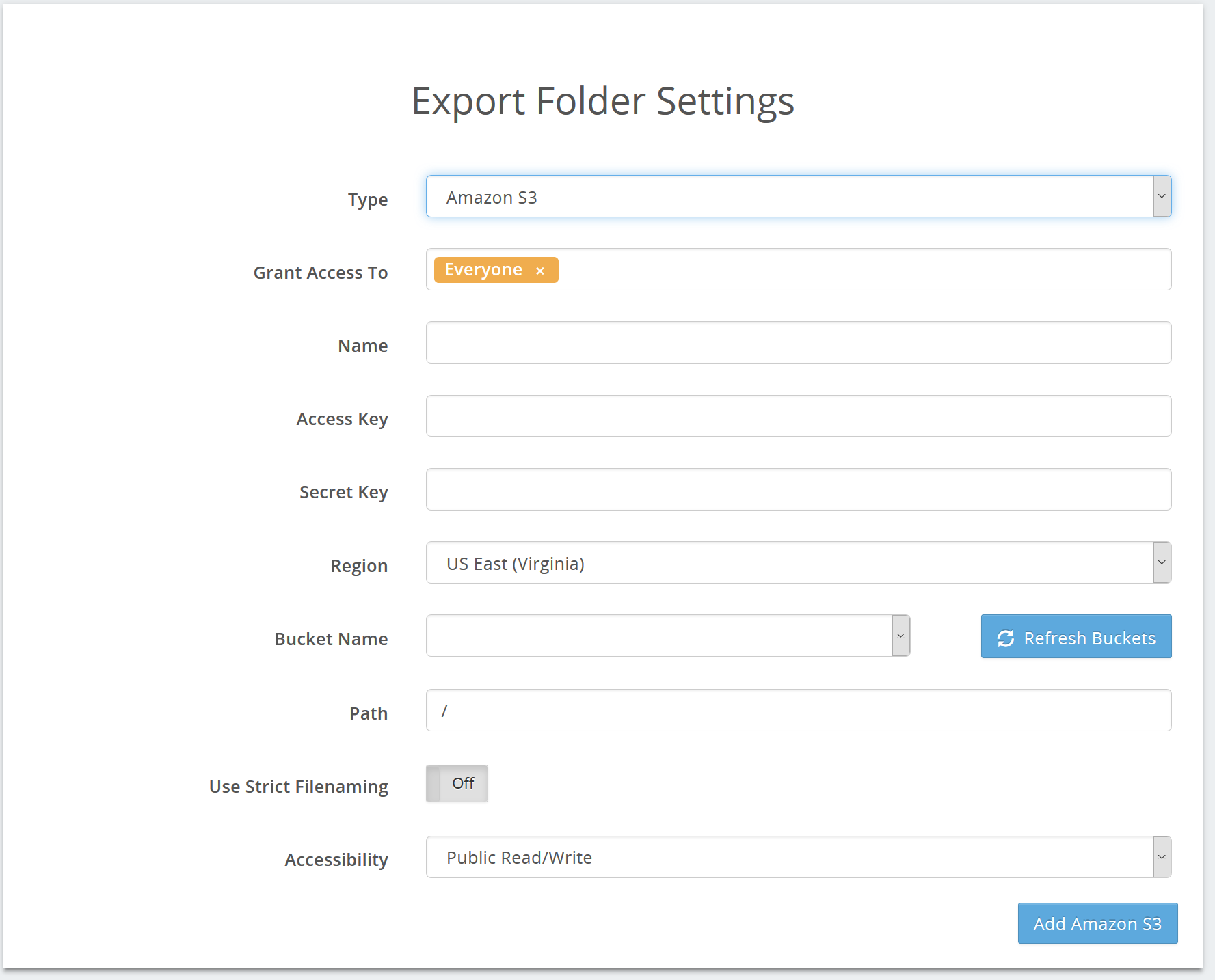
For assistance with these settings, please contact the administrator of your Amazon S3 account.
Brightcove
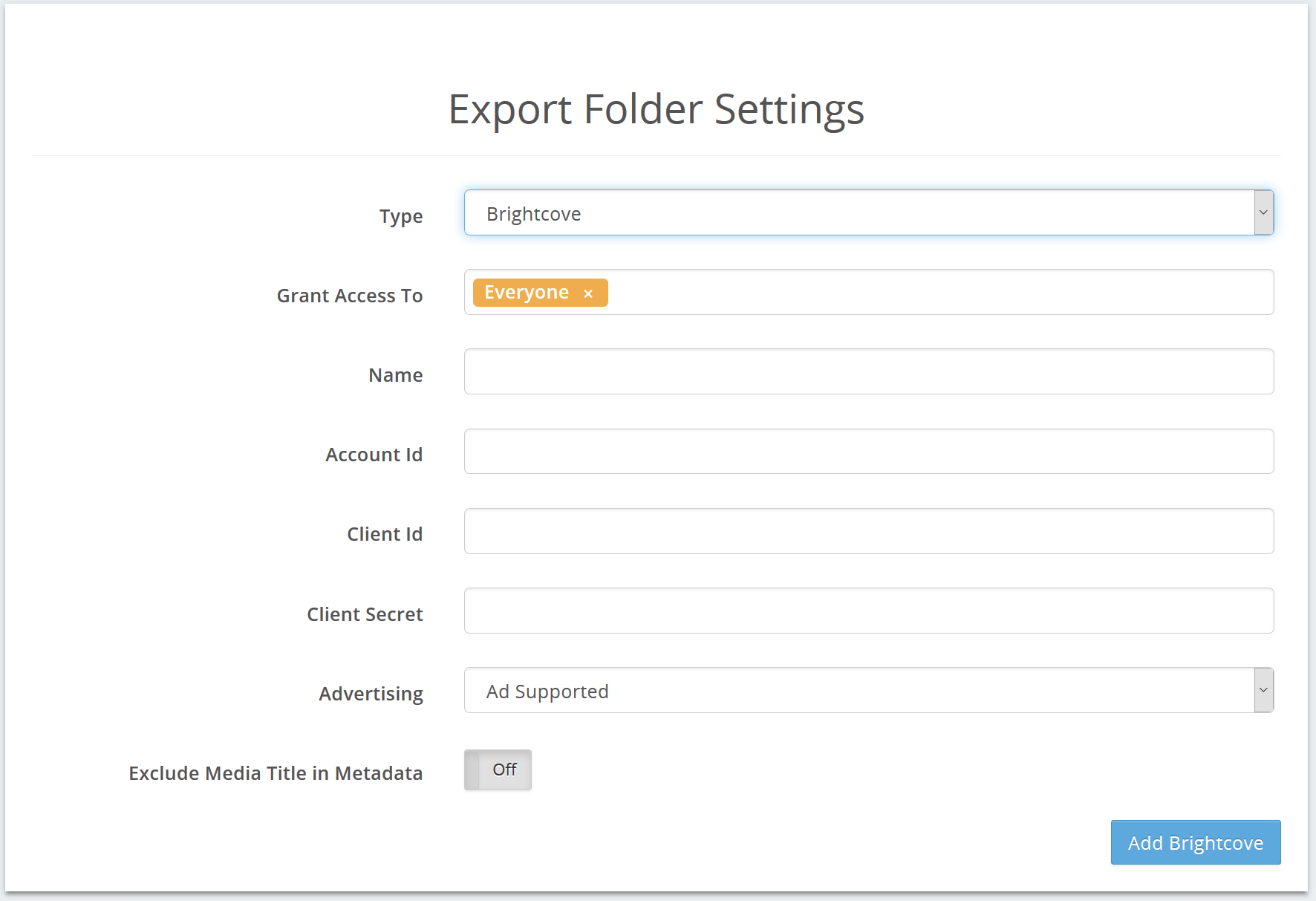
For assistance with these settings, please contact the administrator of your Brightcove account.
Dropbox
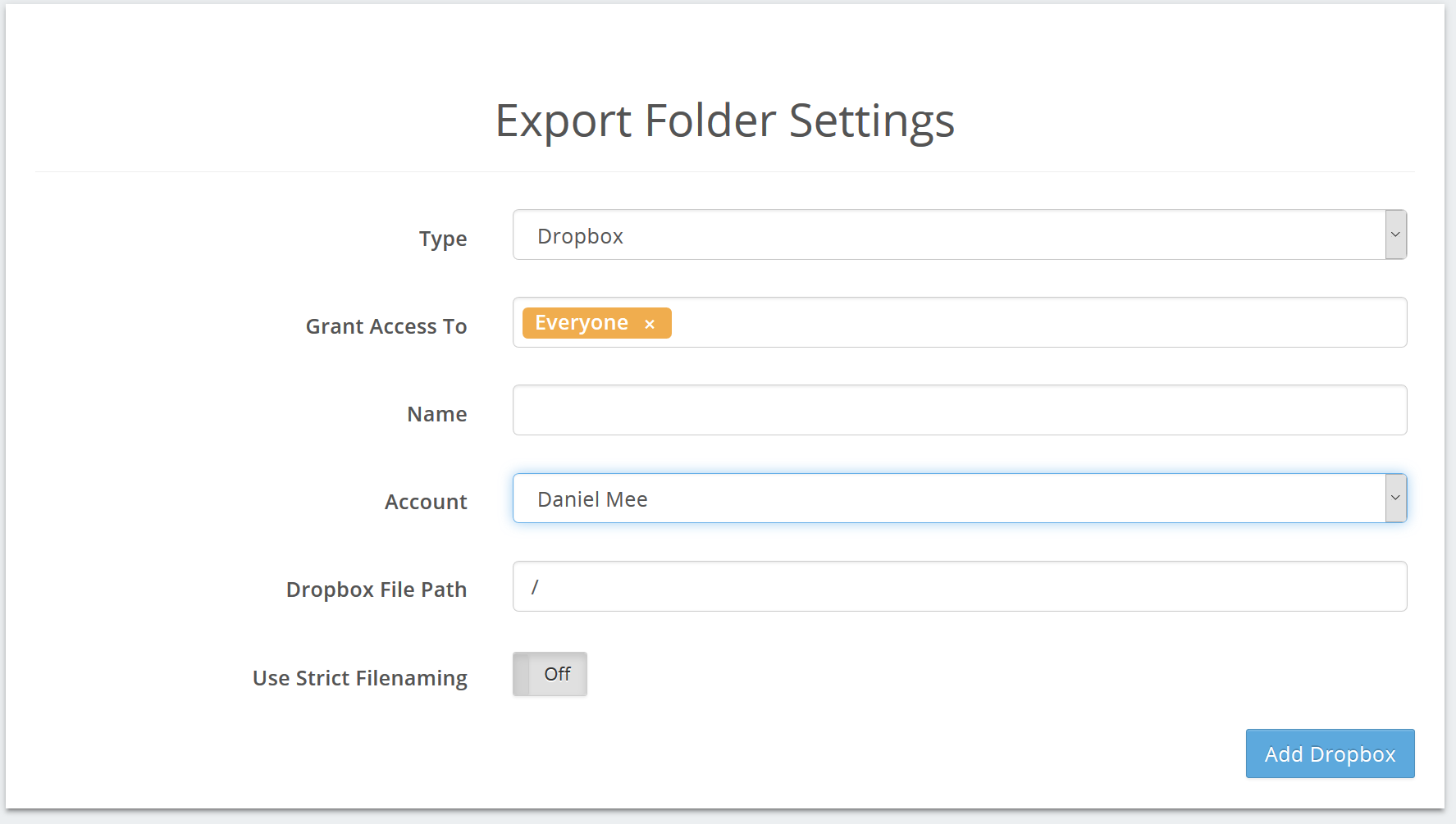
To enable this option, add a Dropbox account.
Name: This is the name of the Dropbox location as it appears in the SnapStream interface.
Account: The account to use for Dropbox uploads.
Dropbox File Path: The location of the Dropbox folder on the SnapStream system.
Use Strict Filenaming: Excludes special characters from filenames.
FTP/SFTP
Export to an FTP or SFTP location.
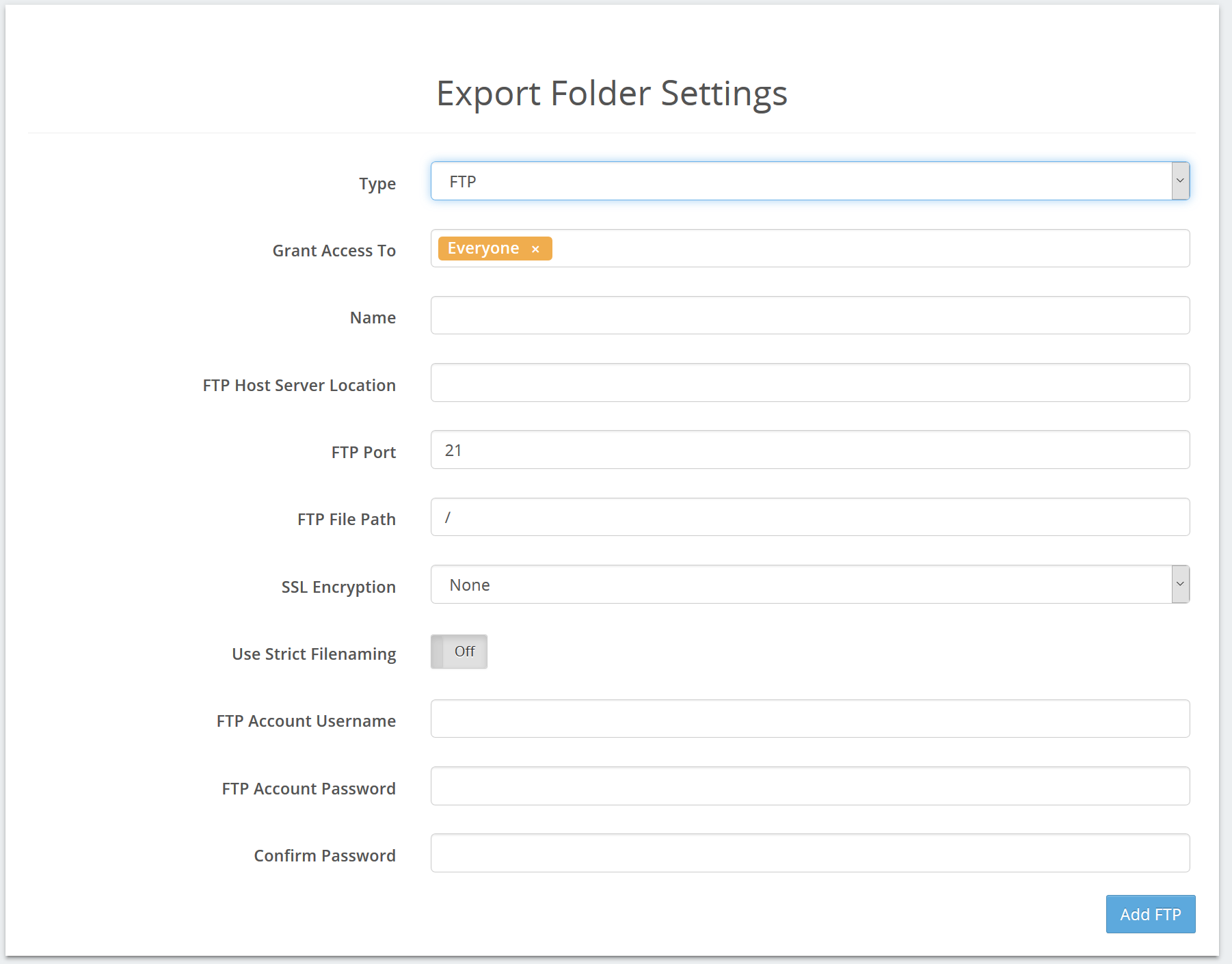
For assistance with these settings, please contact the administrator of your FTP server.
Google Cloud Storage
Export to a Google Cloud Storage location. NOTE: Google Cloud Storage is different from Google Drive. See below for Google Drive options.
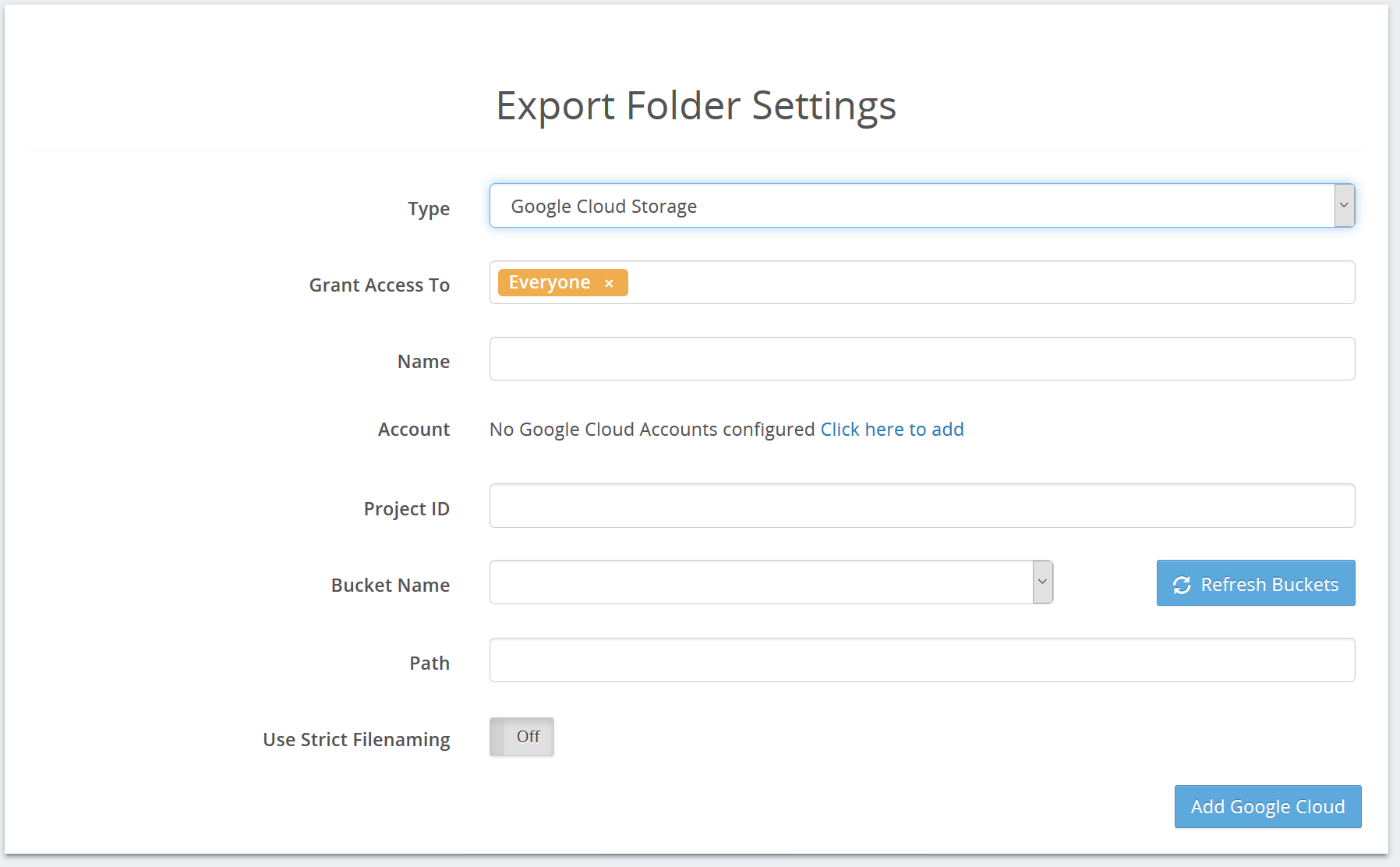
For assistance with these settings, please contact the administrator of your Google Cloud account.
Google Drive
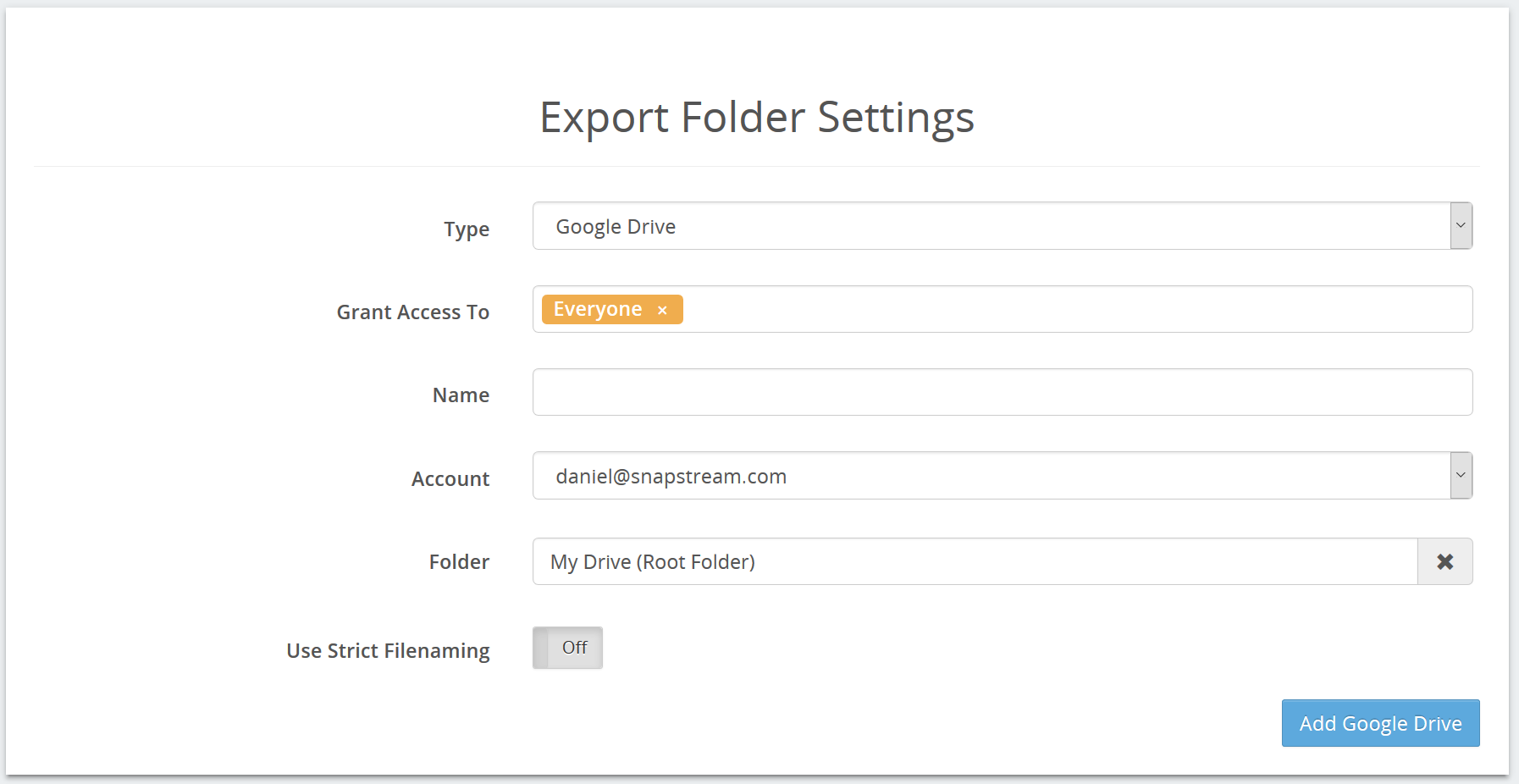
To enable this option, add a Google Drive account.
Name: This is the name of the Google Drive location as it appears in the SnapStream interface.
Account: The account to use for Google Drive uploads.
Use Strict Filenaming: Excludes special characters from filenames.
Vimeo
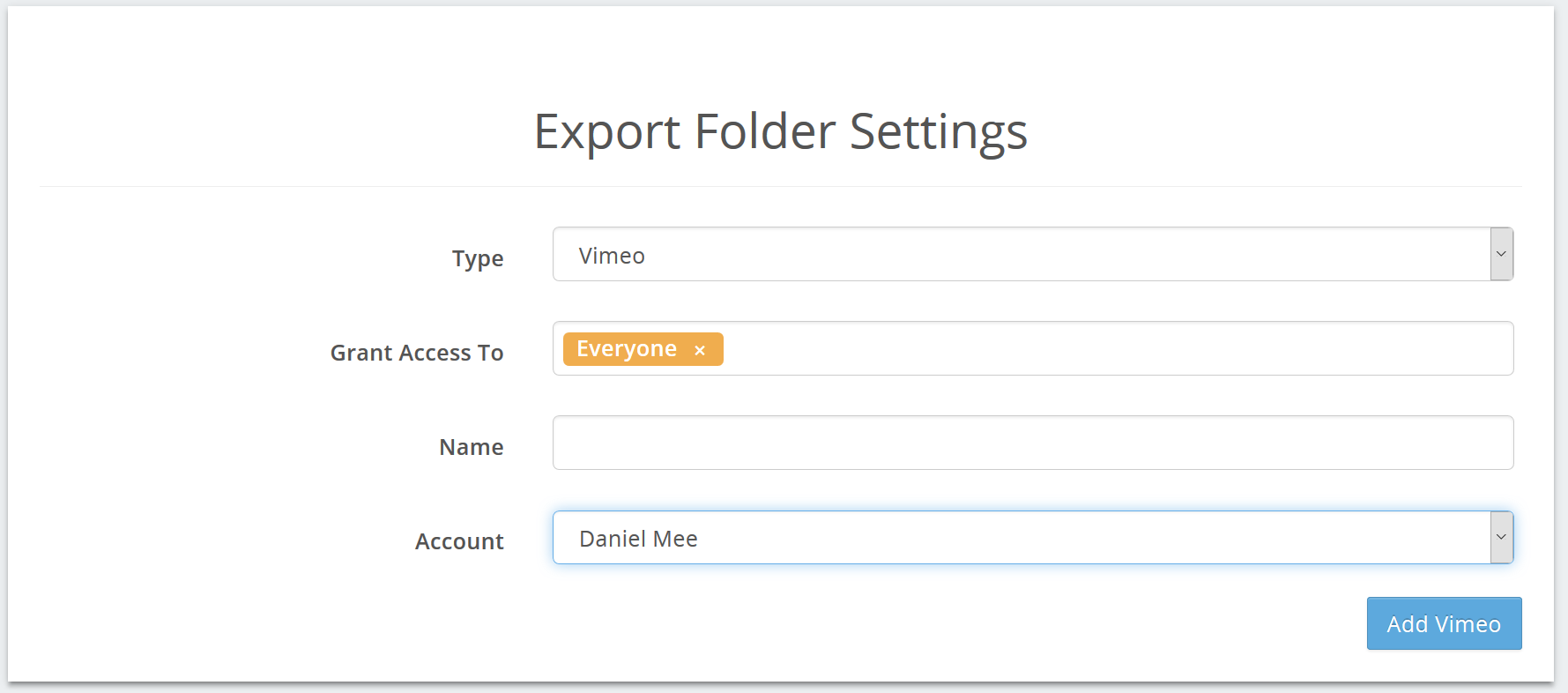
To enable this option, add a Vimeo account.
If you require assistance with configuring any of these, please reach out to support@snapstream.com and a technician will be happy to help where possible.