
Create for Social turns a standard 16:9 broadcast clip into a vertical (9:16) video ready for social platforms, with AI-generated captions and text overlays applied. Everything happens inside SnapStream, so you no longer need to download a clip and reformat it in Premiere Pro, CapCut, or another external editor before posting to TikTok, Instagram Reels, YouTube Shorts, X, and similar platforms.
Where to find it
You can start Create for Social from three places:
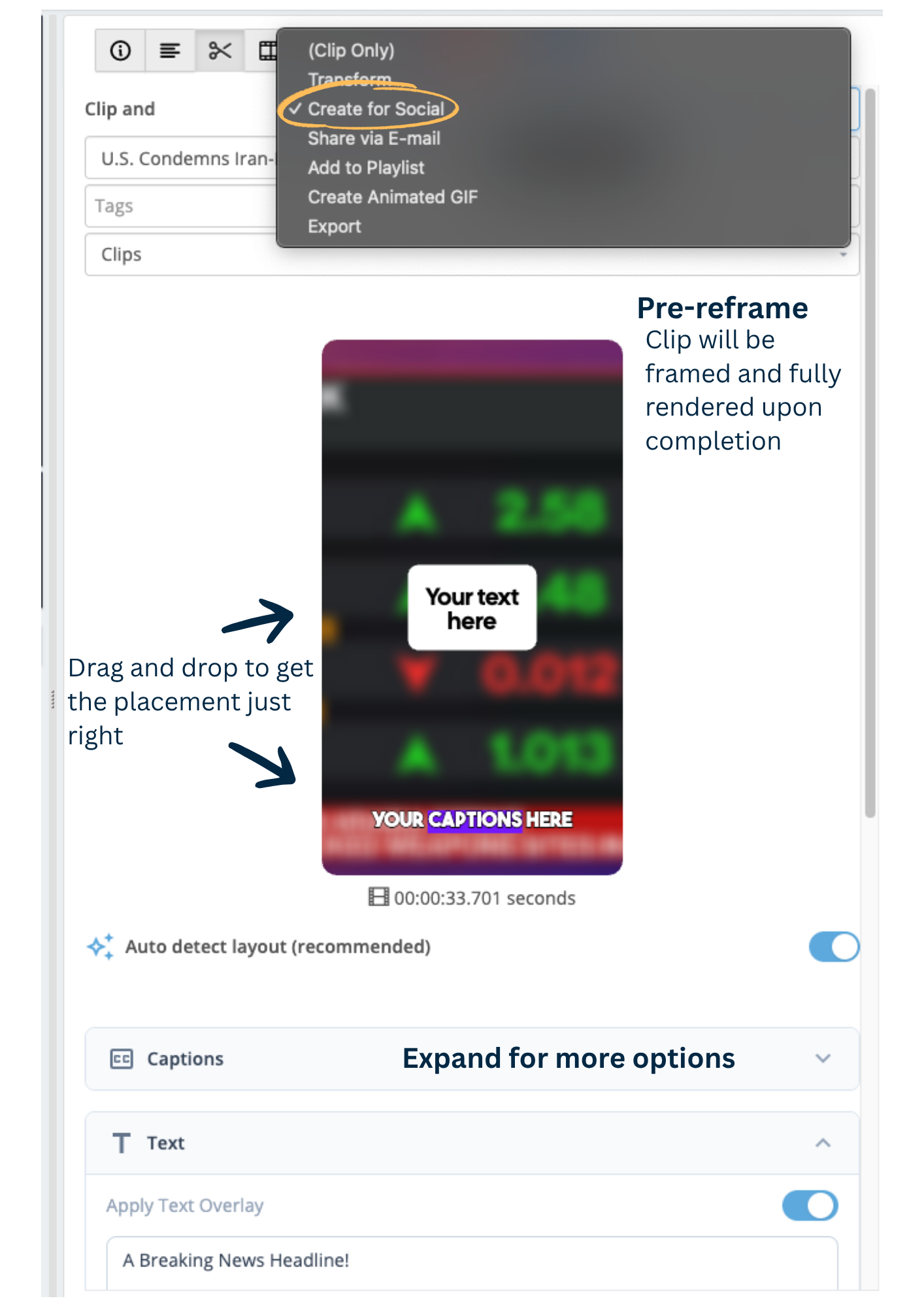
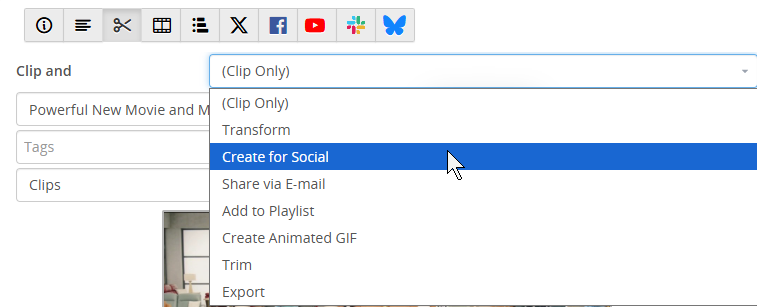
- Clip Pane: choose Create for Social from the Clip and dropdown.
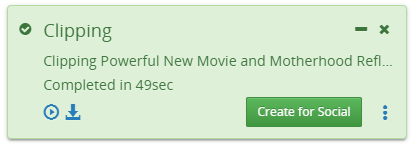
- Completed clip pop-up notification: when a normal clip finishes processing, the pop-up notification includes a Create for Social button.
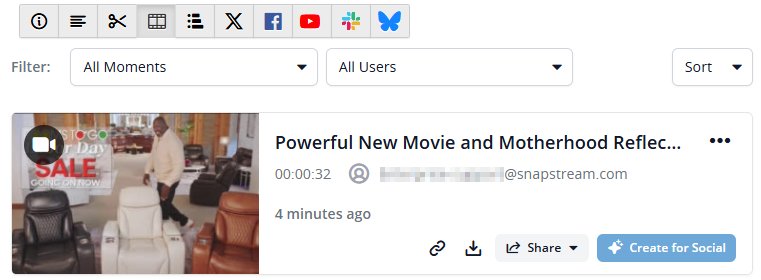
- Moments list: each clip card shows a Create for Social button. If a clip already has a Create for Social version, that button becomes Review instead.
Auto-reframing
Create for Social tracks the active speaker or the most relevant subject in the frame and dynamically crops the video to keep them centered as they move. For sports clips, the tracked subject may be an athlete or an object such as a ball or puck.
Choosing a format and layout
You can pick how your clip is reframed to 9:16:
- Auto Detect (recommended, on by default)

- Fill
- Fit
- Split
Your selection is applied to the clip preview immediately. We recommend leaving Auto Detect on, as it generally produces the best results.
Captions
Burned-in, animated captions are generated automatically and are fully customizable. Expand the Captions module for the full set of options: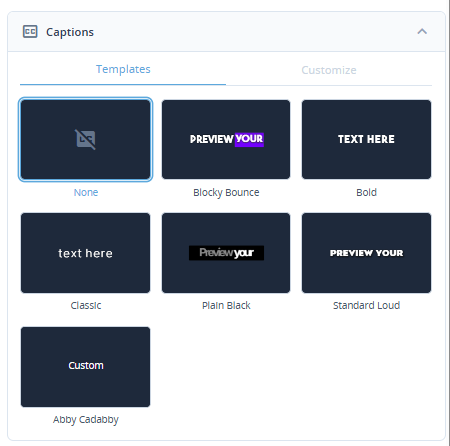
- Start from one of about six preset caption templates.
- Adjust layout and position: vertical and horizontal padding, font size, and max characters.
- Adjust typography: font family, weight, case, and italics.
- Adjust colors: base text, background, spoken word, and word-highlight block.
- Edit caption text inline to correct any transcription errors, then reprocess to apply your changes.
- Save your own custom caption templates. Saved templates become available to everyone on your server.
Text overlays
A separate module lets you add standalone text, sometimes called title cards.
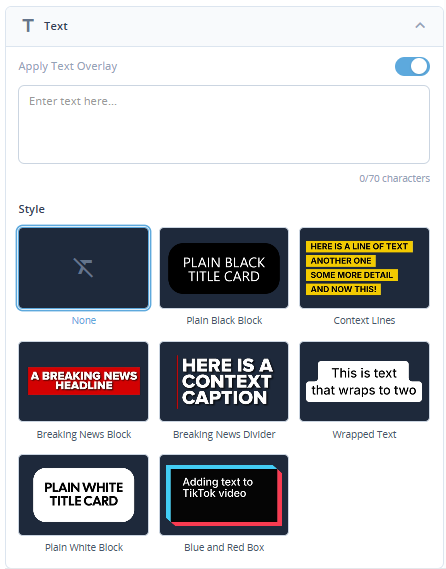
- Choose from preset text style templates.
- Enter your own text.
Positioning captions and text on the clip
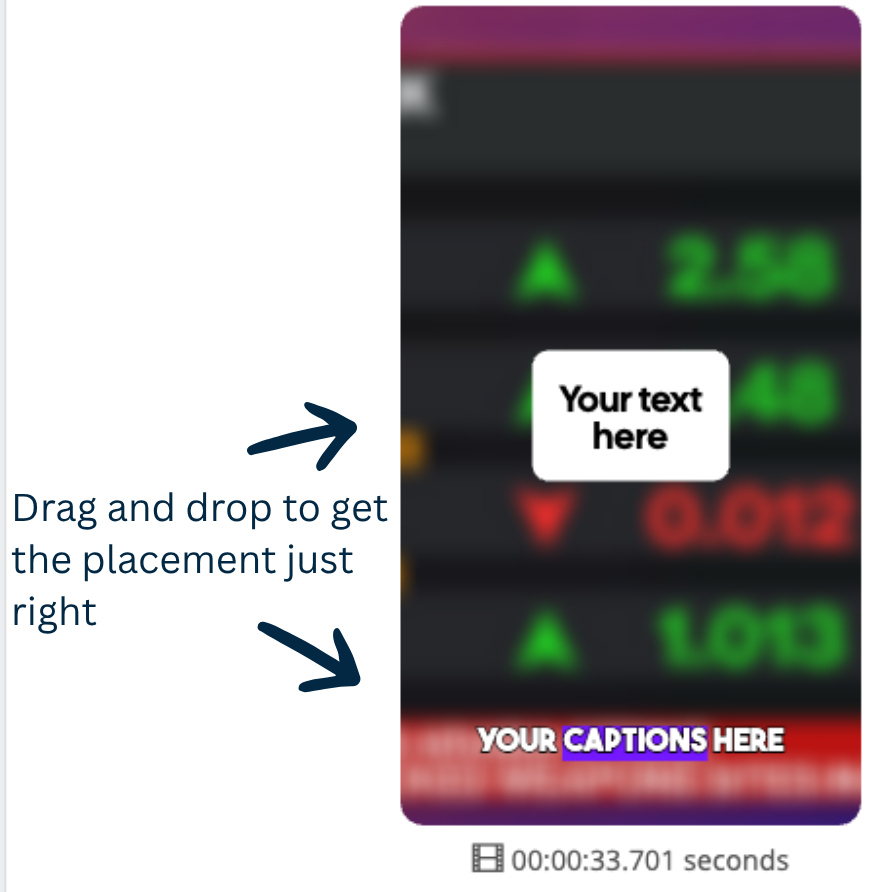
The preview shows exactly where your captions and text overlay will appear on the reformatted clip. To reposition either one, drag and drop it directly on the preview until the placement looks right. What you see in the preview is what will be rendered when the clip is created.
Review & Share
Once processing completes, open the review pane by clicking Review & Share on the pop-up notification or Review from the Moments list. From here you can:
- Play, pause, and track duration with the playback controls.
- Click Edit Caption Text to open the caption editor, make changes, and click Apply Changes & Reprocess. Reprocessing usually takes 45 to 60 seconds.
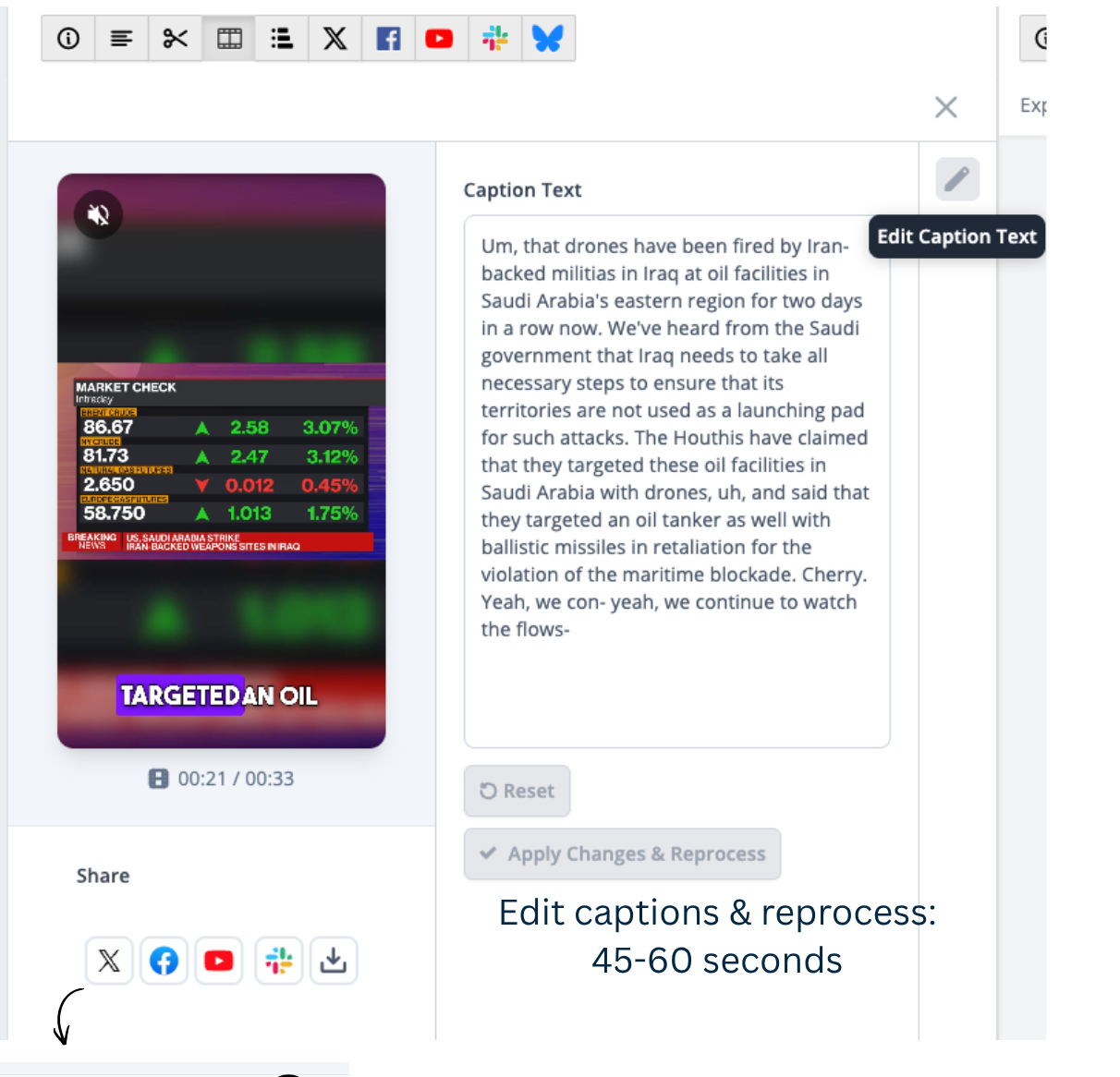
- Preview the reformatted clip.
- Download the reformatted 9:16 version, the original 16:9 version, or both.
- Share directly to your connected social accounts (X, YouTube, Facebook, Bluesky, and others). Sharing works the same way as direct share from the Moments list.
How reformatted clips appear in your library
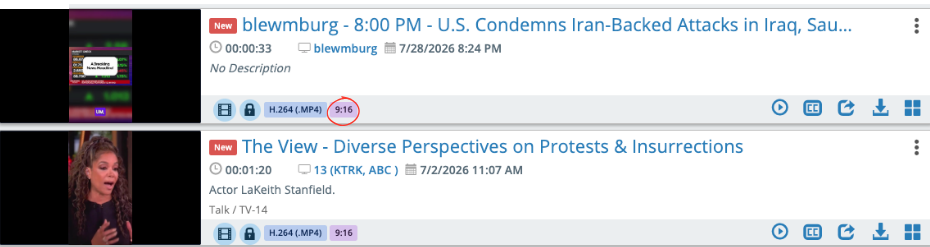
Reformatted clips show a thumbnail that reflects the vertical aspect ratio, along with a 9:16 tag so you can spot them at a glance.
Tips for the best results
A few things affect how well the automatic reframing and captions turn out:
- Single-speaker clips work best. Multi-speaker and complex scenes (panels, roundtables, host-plus-guests, rapid cuts, and lower-third graphics) are the hardest for the model and most likely to need manual correction.
- Use higher-quality source video when you can. Because reframing effectively zooms into part of the screen, low-resolution source can result in a noticeably small final image. If your clips look soft, consider increasing your recording quality.
- Quick movement, repeated cuts or fades, and cross-talk can reduce reframing accuracy.
- Stick with Auto Detect unless you have a specific reason to change it. A suboptimal layout choice is a common cause of disappointing results.
- Review captions before publishing. AI-generated captions can miss names (especially non-English names), technical terms, and jargon. Edit the text and reprocess before you share.
- Partial chyrons may sometimes appear in the cropped frame. If you would rather they not show, a text overlay can be used to cover them.
Current limitations
- Branding is not yet available. Logo upload and positioning and the optional date burn-in are planned for a future release.
- The AI reframe cannot be fine-tuned with granular manual adjustments. You can fall back to a full manual crop, but there is no middle-ground frame adjustment. This is consistent with many comparable tools available today.
- Processing time is targeted at under 5 minutes for a 1 to 2 minute clip. Longer or more complex clips may take longer.
Getting help
If a clip fails to process, takes much longer than expected, or the captions, text overlays, or styling do not appear as configured, contact SnapStream support. Including the affected clip and a description of what you selected will help us investigate quickly.