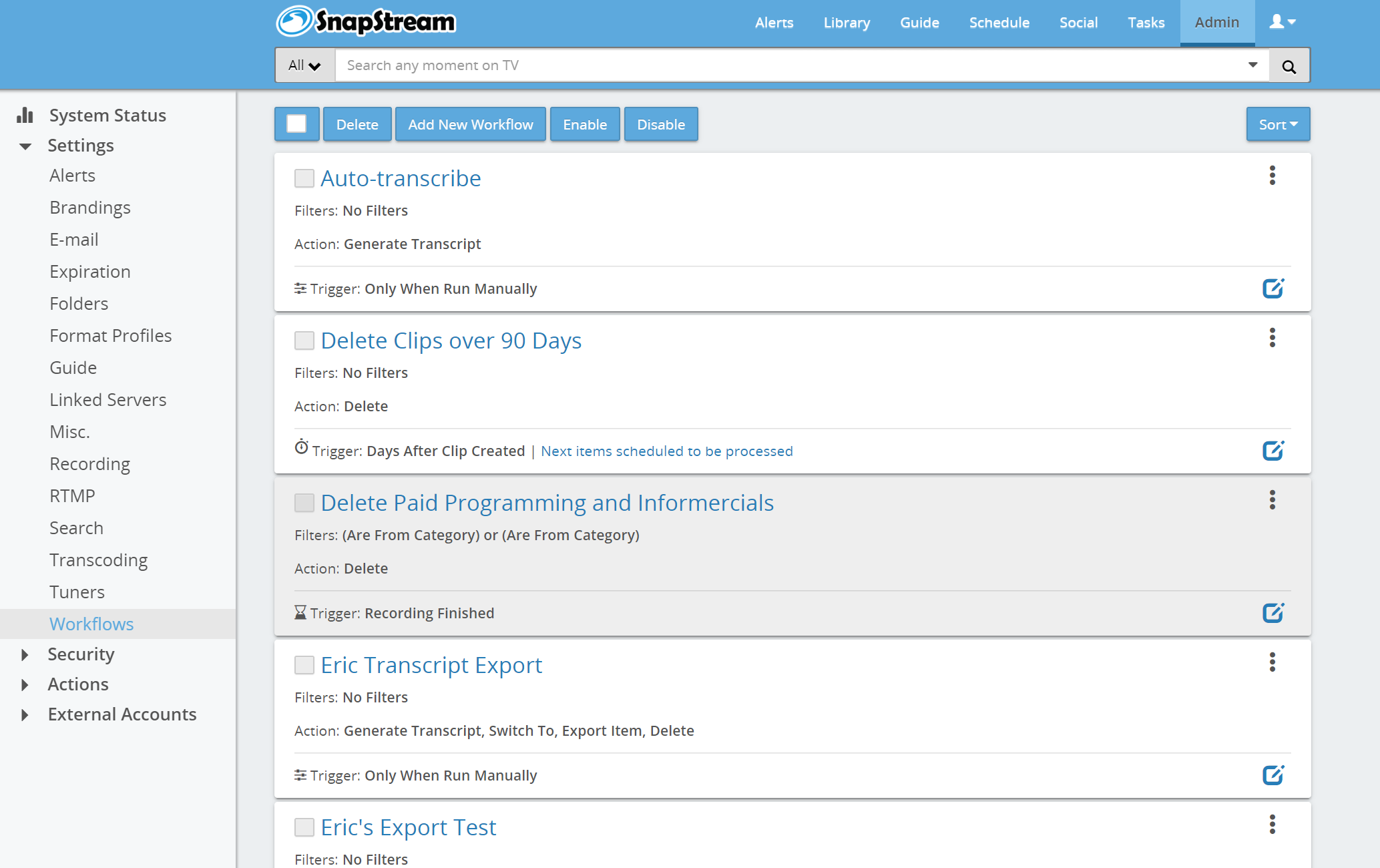
By default, SnapStream will store your recordings in your designated folder, located under Admin -> Folders.
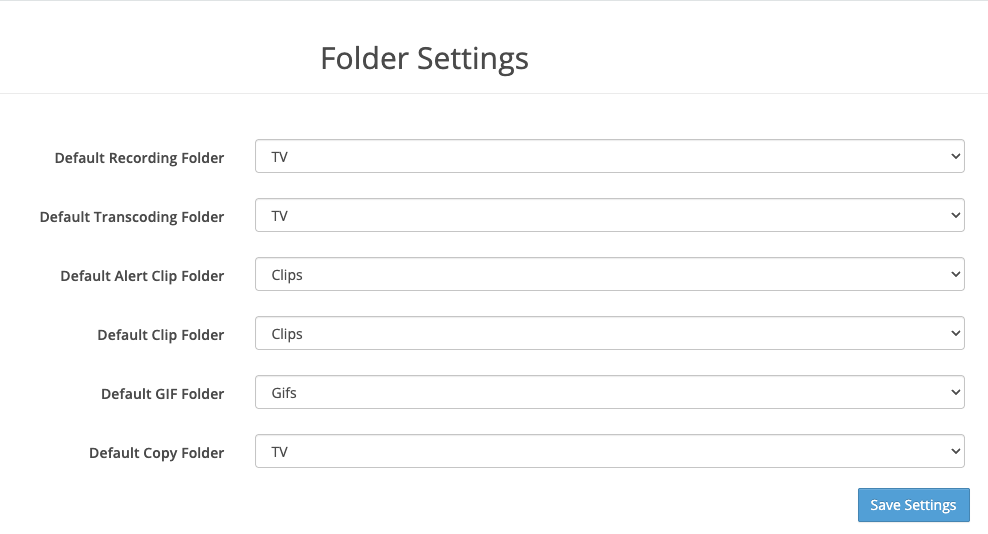
These are the standard locations for the different media types managed by SnapStream. All forms of media will defaults to these locations unless modified.
Each time you set up a recording job, create a clip, or gif, you have the option to modify the Destination Folder so that it doesn't rely on the default setting mentioned earlier. You will locate the Destination Folder option illustrated in the image below within your settings, provided that you have defined other folders.
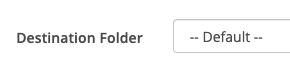
Depending on the type of recording job, you may have to navigate to the job settings to find this option on the Schedule page.
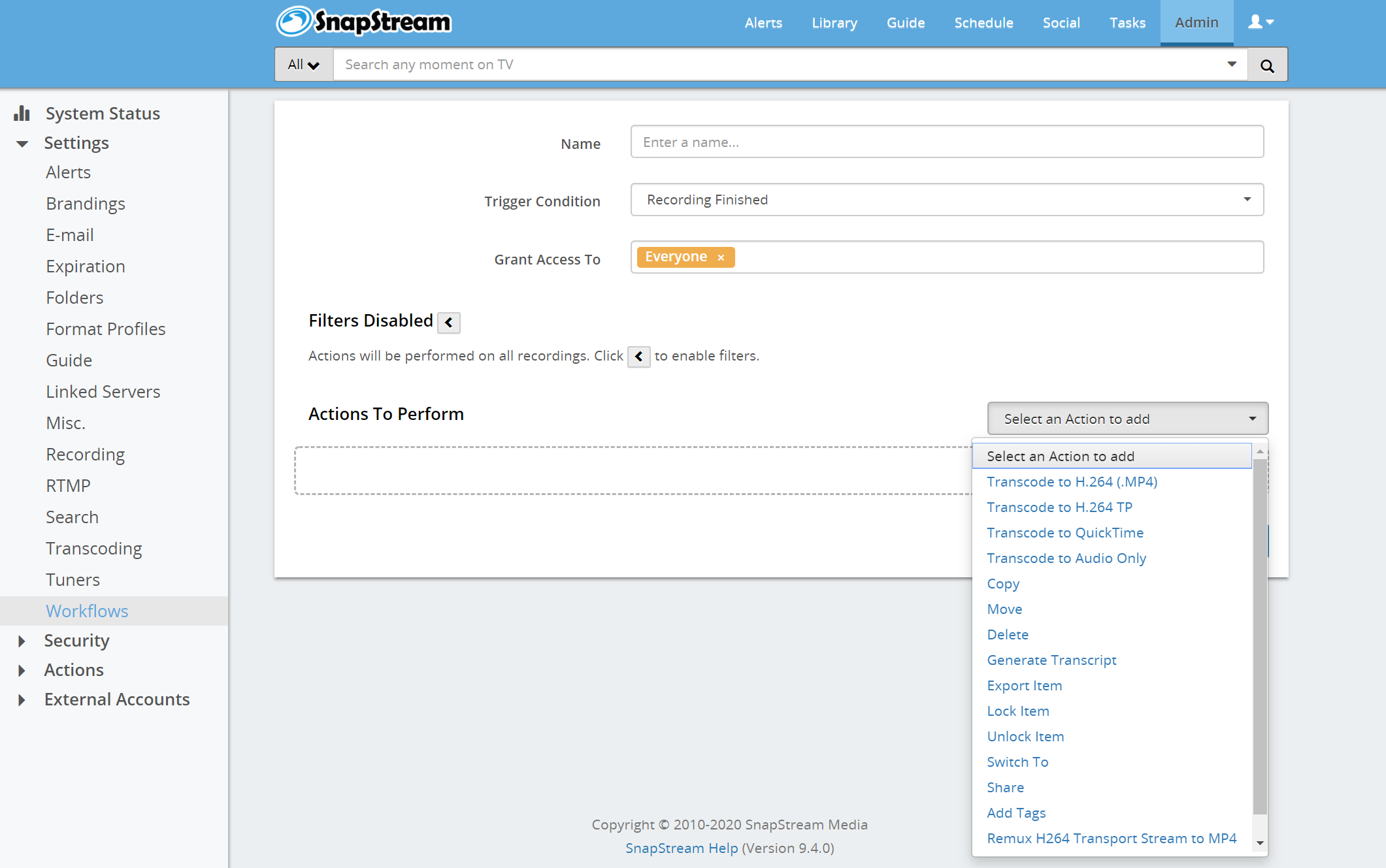
If you wish to have SnapStream automatically transfer your media types once they have been created, you can achieve this using Workflows. You can direct certain recordings or clips to be moved or copied to a folder of your preference.
You can discover additional details on developing workflows here.