
If your recording displays a black screen, there may be several factors causing your problem.
If a recording is currently in-progress, let’s attempt to restart the recording.
- Click on Schedule at the top
- Find your recording job (it could be an individual job, a 24/7 record all on this channel job, etc.)
- Put a check in the box next to it.
- Select Disable
- Re-select the box again
- Click on Enable
Kindly be aware that this procedure will restart your current recording and generate a new one in the Library. Please visit the Library to check the new recording and determine if it addresses the issue.
If that does not resolve the issue, you have a few other things to check. If you are a SnapStream MTVS customer (TV signal is hosted by SnapStream), please stop here and proceed to contact the Operations team. If you host your own TV source, please proceed.
- The cable/satellite box/QAM source from your TV provider is not delivering a proper signal. Kindly confirm that your source is outputting a correct signal (video/audio). Additionally, ensure that your component/composite cables are securely connected if applicable.
- The stream is not reaching the SnapStream Cloud.
Please log into your Encoder and check if it is transmitting a stream to the SnapStream Cloud. You might also consider restarting the stream, as this often resolves streaming problems. - You are currently tuned into a channel displaying a black screen. Please attempt to switch to a different channel and then return to the desired channel. Instructions for changing the channel can be found here.
If the recording has completed, let's check a few details for verification.
- Identify the tuner that is recording the black screen. You easily identify the tuner by playing back the recording and pressing F2 on your keyboard or FN+F2 on a MAC. The prompt with the Tuner Name info will appear.
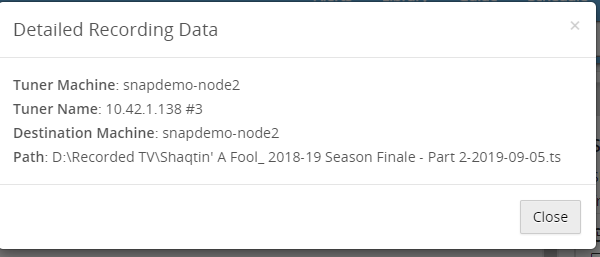
Click on Schedule at the top and than on Current on the Left and Show Recording Diagnostic Info. Is the tuner in the process of recording anything right now? If so, play that recording to determine if the tuner is still having the same issue.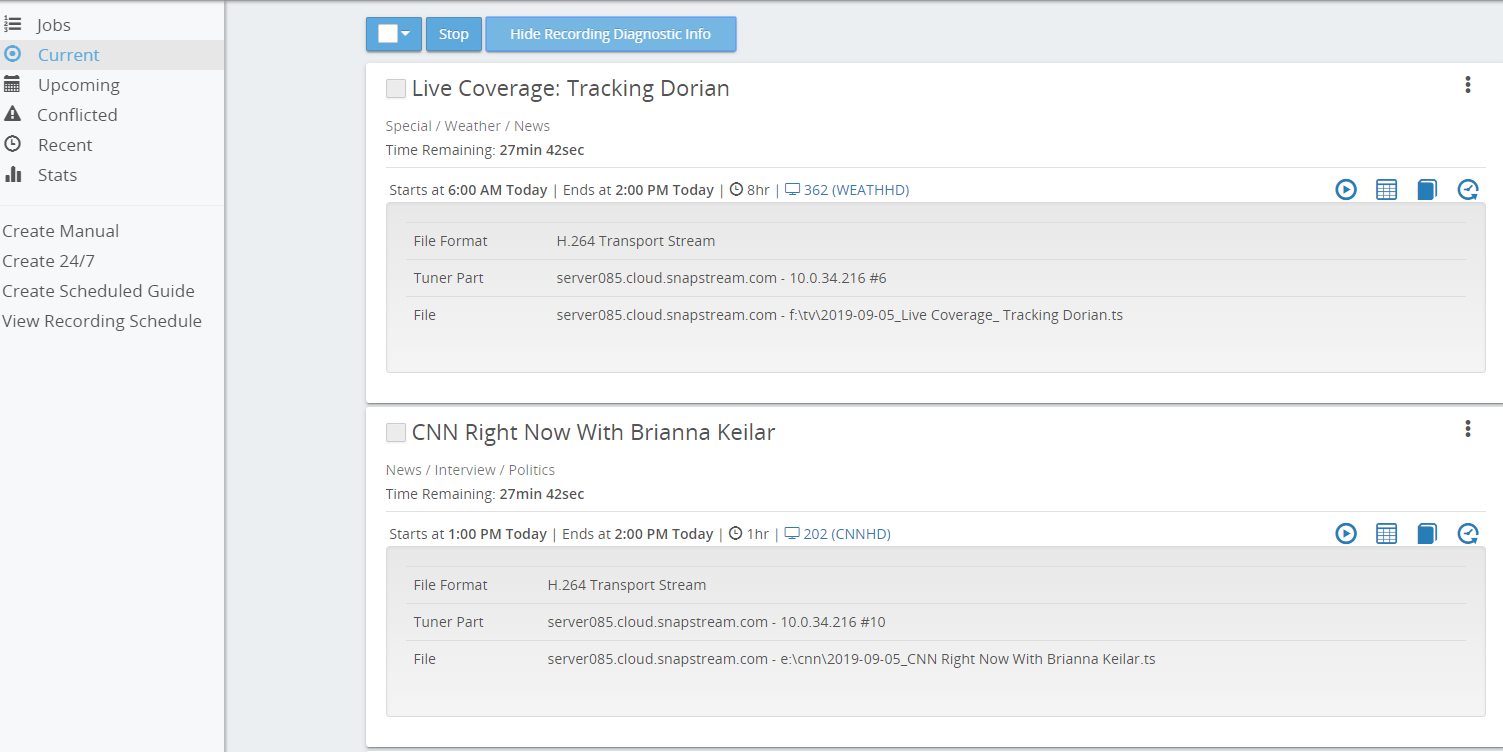
If the recording is functioning properly, you may stop here; however, if you're still encountering issues with your current recording, please continue.
If there is no recording currently underway, initiate a recording and check it. Depending on the number of tuners available to you, you might need to start several recordings until your tuner is used. - Attempt switching the channel to an alternative one to determine if it has any effect.
- Similar to the previous point, kindly confirm that your source is providing a correct signal (video/audio). Additionally, it's important to ensure that your component/composite cables are securely connected.
- Similar to the above, please confirm that the stream is reaching the SnapStream Cloud.
Log into your Encoder and check that it is transmitting a stream to the SnapStream Cloud. You might also want to restart the stream, as this often resolves streaming problems.
If you are require further assistance, please contact the Operations team and a technician will be happy to help where possible.